Creating a Distraction-Free Desktop
by admin in Productivity & Tools 135 - Last Update December 1, 2025
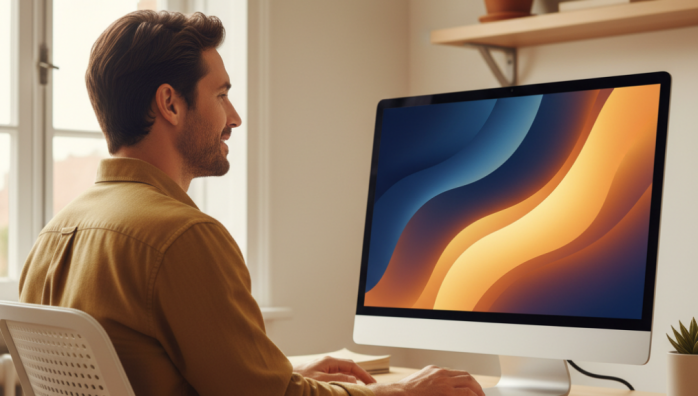
I used to think a cluttered desktop was a sign of a creative, busy mind. Mine was a chaotic landscape of project folders, random screenshots, and document icons I couldn\'t even identify anymore. The truth? It was a constant source of low-grade anxiety. Every time I minimized a window, I was met with a visual to-do list that I wasn\'t ready to face. It was a digital representation of mental clutter, and it was draining my focus before I even started my most important tasks. The day I decided to wipe it all clean was the day my relationship with my computer fundamentally changed.
The real cost of digital clutter
Honestly, I didn\'t believe a few icons could have such a big impact. But I started to read about cognitive load—the idea that our brains have a limited amount of working memory available at any given moment. Every icon, every file, every notification is a tiny cognitive tax. Individually, they\'re nothing. But collectively, they create a constant background noise that makes deep, focused work incredibly difficult. I realized my desktop wasn\'t a convenient workspace; it was a distraction machine I had built myself. It was like trying to cook in a kitchen where every single pot and utensil was left out on the counter. You can do it, but it\'s stressful and inefficient.
My minimalist desktop reset process
Getting to a state of digital calm wasn\'t an overnight fix. It was a conscious process of unlearning bad habits and building a new system. Here’s the exact, simple method I used, which has stuck with me for years.
Step 1: The \'desktop zero\' declaration
This was the hardest part. I created a single new folder on my desktop called \"Archive [Date]\". Then, I selected everything else—every single file and folder—and dragged it inside. The immediate sense of relief was shocking. For the first time in years, I saw my wallpaper clearly. Yes, it was just a temporary fix, but it proved to me that a clean slate was possible and that it felt good. Over the next week, I\'d pull files out of that archive folder only when I needed them, which showed me how much of it was just useless clutter.
Step 2: Hiding all desktop icons
After the initial purge, I took the next step. On my Mac, it was a simple terminal command; on Windows, it\'s a right-click setting. I hid all desktop icons. Permanently. This was the real game-changer. It forced me to abandon the desktop as a storage space and start using my computer with more intention. Instead of visually hunting for an icon, I began to rely on my system\'s search function (like Spotlight or the Windows key). I quickly discovered it was much faster to type three letters of a file name than to scan a sea of icons for it.
Step 3: The \'inbox and launcher\' workflow
So, where do things go now? My system is twofold:
- A single \'Inbox\' folder: I keep one—and only one—folder in my Dock or pinned to my Quick Access. All new downloads and temporary files go here. The rule is simple: this folder must be emptied and its contents filed away or deleted by the end of each workday.
- A launcher application: I became a power user of my computer\'s built-in search. It\'s how I launch apps, find documents, and do quick calculations. This completely eliminated the need for application shortcuts on my desktop.
Maintaining the digital zen
Creating a distraction-free desktop is one thing; maintaining it is another. For me, it comes down to a simple end-of-day ritual. I take two minutes to clear out my \'Inbox\' folder and my \'Downloads\' folder. That\'s it. This tiny habit prevents the clutter from ever building up again. Choosing a calm, minimalist wallpaper also helps. I use simple nature scenes or abstract gradients that soothe the mind rather than stimulating it. The goal is to make your desktop a place you *arrive* at to begin work, not a place that\'s already full of work.